Events
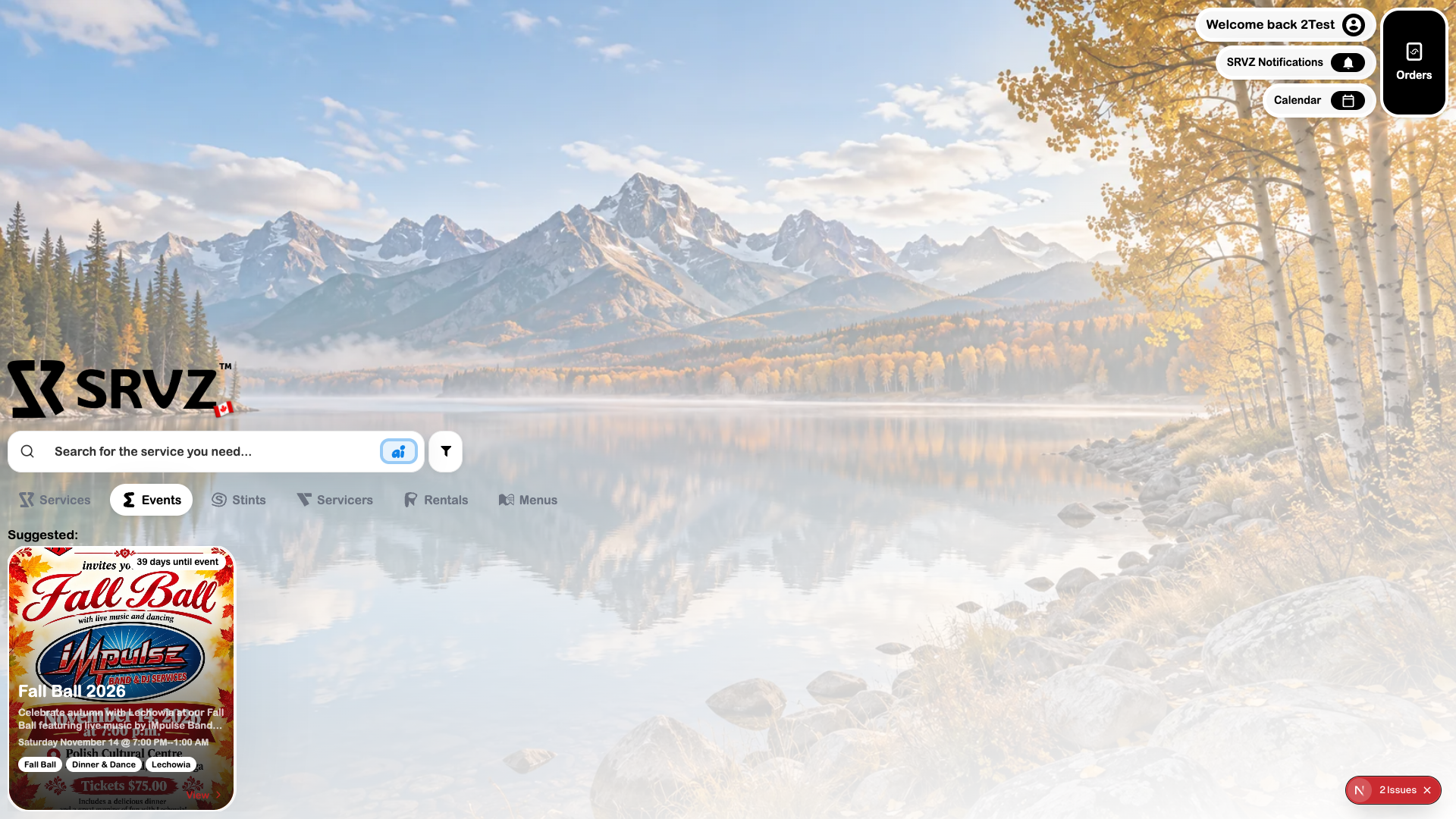
Explore Events and open an event to check its date, venue, organizer, and available ticket or registration options.
Attend an event
- Confirm the event and date you intend to attend.
- Select the available ticket or registration option and enter attendee information when requested.
- Review quantities, price, terms, and any seating choices offered by that event.
- Complete checkout or registration and keep the confirmation and tickets.
Event organizers control availability and entry requirements. Check the event's details and confirmation for updates before attending.
A practical workflow example
You book a dinner-and-dance event. Read the date and venue, choose the ticket or seating option, and answer any attendee questions before payment.
Try the workflow
- Open Home → Events and choose View on an event.
- Review the date, start/end time, location, description, and organizer.
- Use the event’s booking controls to choose seats, tables, quantity, or ticket type where offered.
- Answer registration questions such as dietary needs when the organizer has enabled them.
- Review the final amount and payment method before completing checkout.
- Open Orders → Tickets to find the purchased ticket and follow the organizer’s check-in instructions.
Controls to review
| Option | What it means |
|---|---|
| Seating / quantity | Assigned seating and general admission use different selection screens. |
| Ticket types | Events may offer different prices and inclusions. |
| Registration | Organizer-specific questions can appear before payment. |
| Information-only events | May provide contact details rather than a ticket checkout. |
Tips
Check the venue and event date before paying. Keep the ticket accessible on the device you will bring to check-in.
Troubleshoot this workflow
If no checkout is offered, check whether the event is information-only, sold out, private, or not ready for sales. A selected seat is not a purchased ticket until checkout succeeds.
Read the seat legend
Assigned-seat events can take individual seats off sale. Use the map's legend to distinguish your selection, reserved or sold seats and seats unavailable for purchase. Colours follow the event's current map; read the legend rather than assuming a colour means the same thing everywhere.
An unavailable seat cannot be purchased even when other seats at its table remain available. Select another offered seat, then review its label and checkout summary. A highlighted seat remains a selection until the booking and payment confirmation succeeds.