Order from a menu
Menus gives you the customer-facing ordering experience for a business’s available food, drinks, or other menu items. The business controls online ordering, fulfillment, and item options.
A practical example
You order dinner for pickup. Choose the items and variants, review the cart, and confirm the pickup details rather than assuming every listed menu is open for online orders.
Open the feature
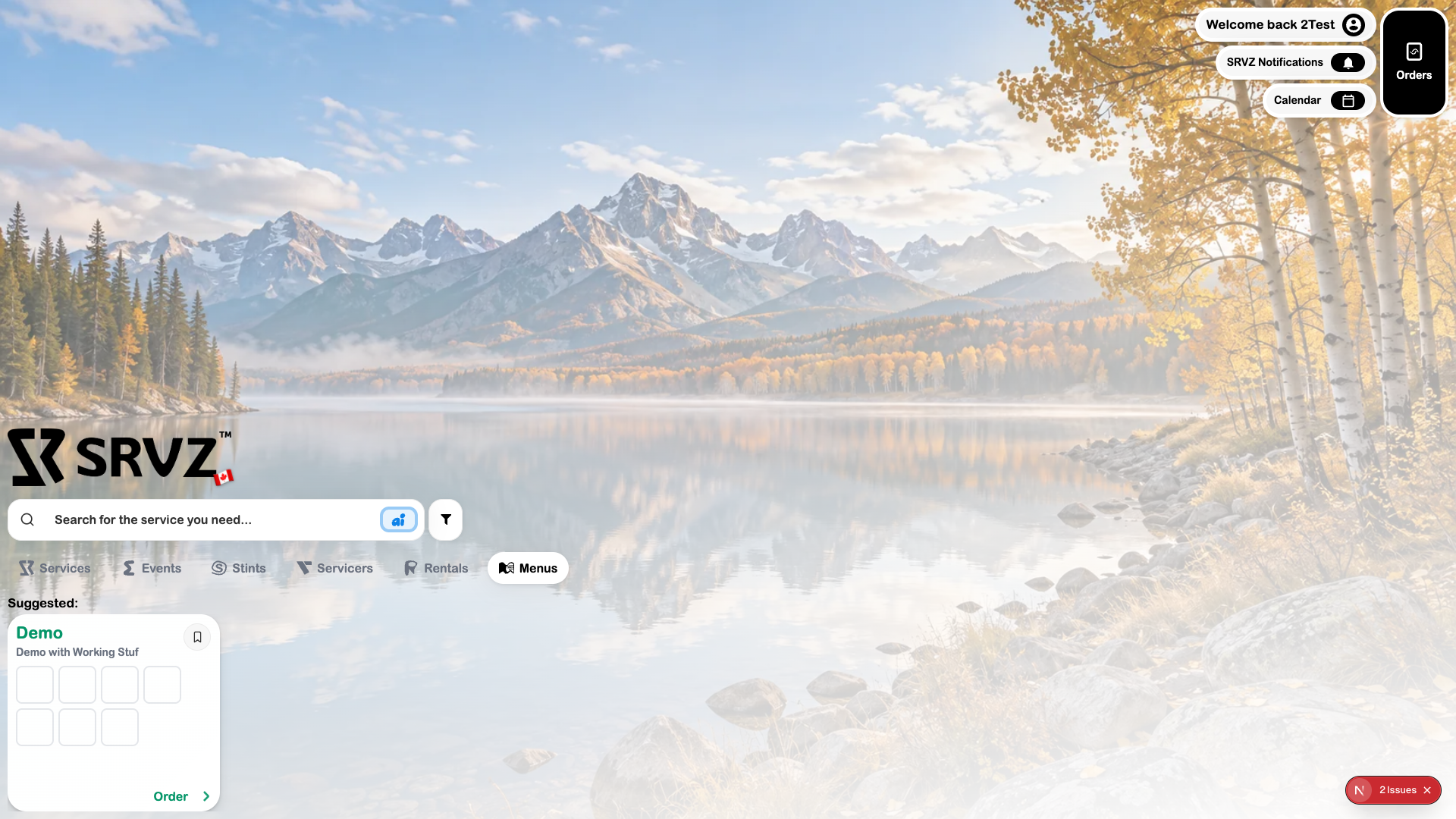
Open this area in SRVZ. Screenshots use the actual local web app and a test account; your saved records and available offers may differ.
Step by step
- Open Home → Menus and select the business menu.
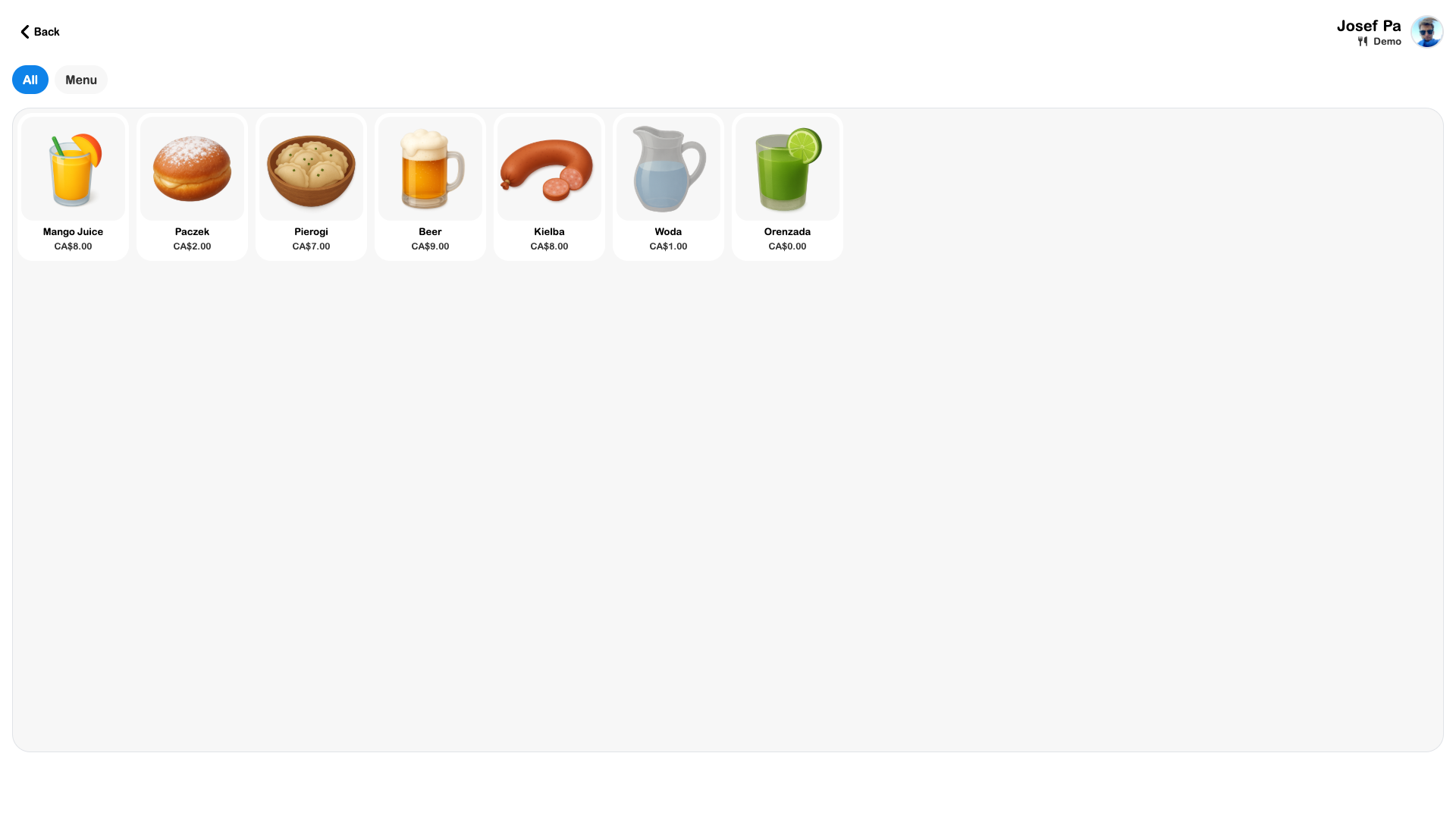
- Browse categories and item descriptions. Review item options and any 3D preview offered.
- Choose the items and variants you want and add them to the cart.
- Review quantities, fulfillment, and the total in Review order or Checkout.
- Complete the offered payment/confirmation process.
- Track the resulting order in Orders and follow the business’s pickup or handoff instructions.
Important options
| Option | What it means |
|---|---|
| Item variants | Options can affect the chosen item or amount. |
| 3D preview | Supported items can include a model you can rotate and inspect. |
| Fulfillment | Pickup, table, or other available modes depend on the business setup. |
Tips
Review dietary and item details and ask the business when important information is missing. Confirm the fulfillment location before ordering.
If something does not work
A visible menu is not always open for online ordering. If checkout is unavailable, check the menu’s current state or contact the business.