Services
Browse Services or use search to find a provider for the work you need. Open an offering to check its description, coverage, pricing information, and booking options.
Request work
- Choose the service and provider.
- Complete the provider's questions with the details of your job. Include the location, timing, and relevant notes or files when requested.
- Review the quote or price, terms, and next steps before submitting or paying.
- Keep the confirmation and follow the work order for status and communication.
Each provider decides what information and approvals its flow needs. A request is not a confirmed appointment until the provider's process confirms it.
See Finding services and Work order forms.
A practical workflow example
You need a window-cleaning service. Compare the scope and supported location, then provide the details the provider needs rather than sending the same description to several unrelated inboxes.
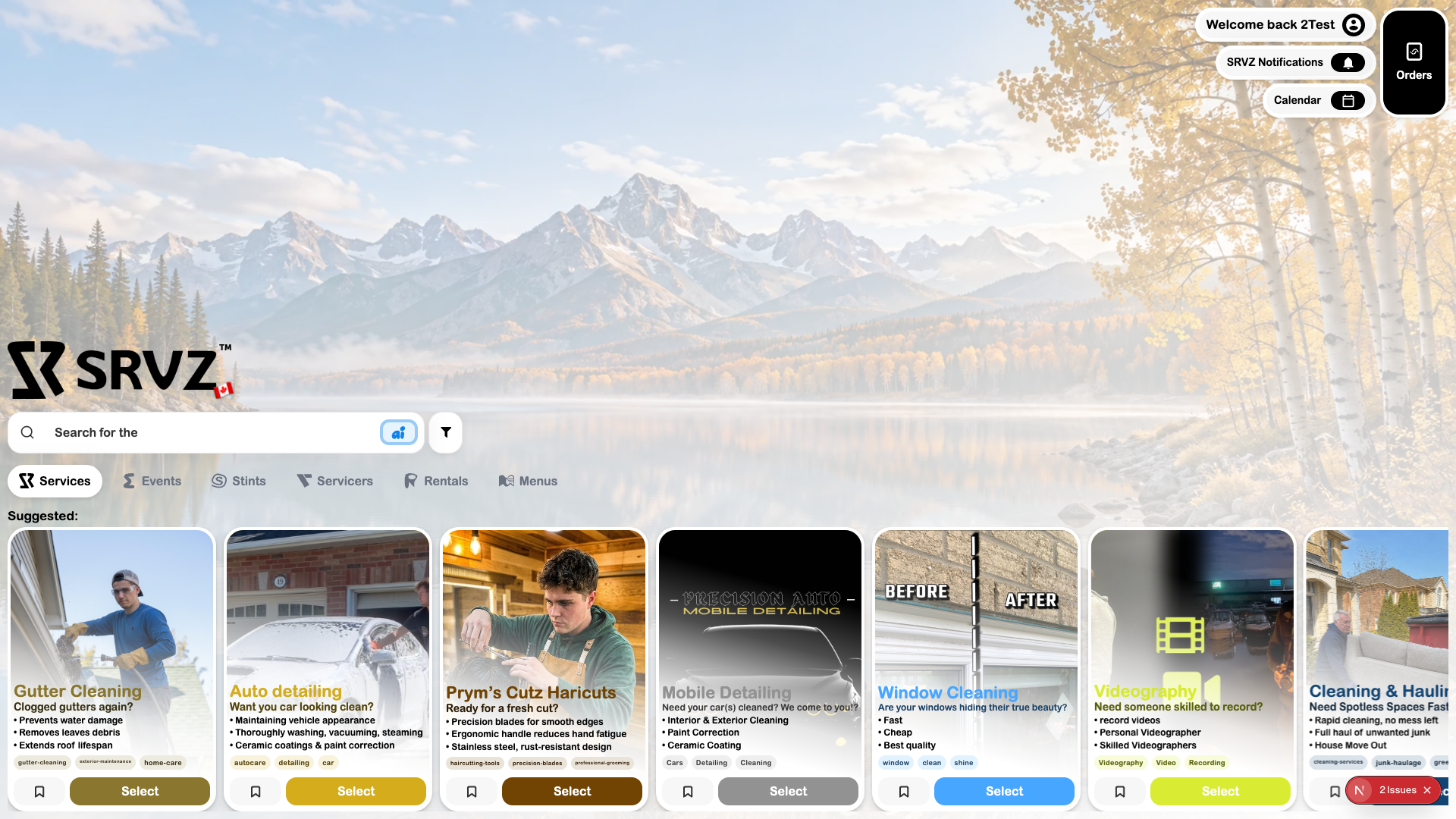
Try the workflow
- Open Home → Services. Choose the country filter that matches where you need the work.
- Browse the cards or use search. Compare the description, key points, tags, and provider.
- Choose Select to open the service page. Review More Details, reviews, and service-area information where shown.
- Choose Order to open the provider’s booking journey. Answer the fields and review any tier, quote, date, or payment step it presents.
- Review the final summary before submitting or paying. Check Orders for the resulting request.
Controls to review
| Option | What it means |
|---|---|
| Service details | Scope, provider identity, reviews, and supported location help you decide whether the offering fits. |
| Booking flow | Fields and required answers vary by provider; there is no universal fixed work-order form. |
| Order state | A submitted request, accepted booking, quote approval, and completed payment are separate steps. |
Tips
Include the information that affects scope: location, measurements, access, condition, and photos when requested. Do not assume a preferred date is already confirmed.
Troubleshoot this workflow
If the Order screen is empty or does not continue, the offering’s booking setup may be incomplete. Return to the service, check another available offering, or contact the provider/support. Do not treat opening Order as a submitted request.