Your calendar
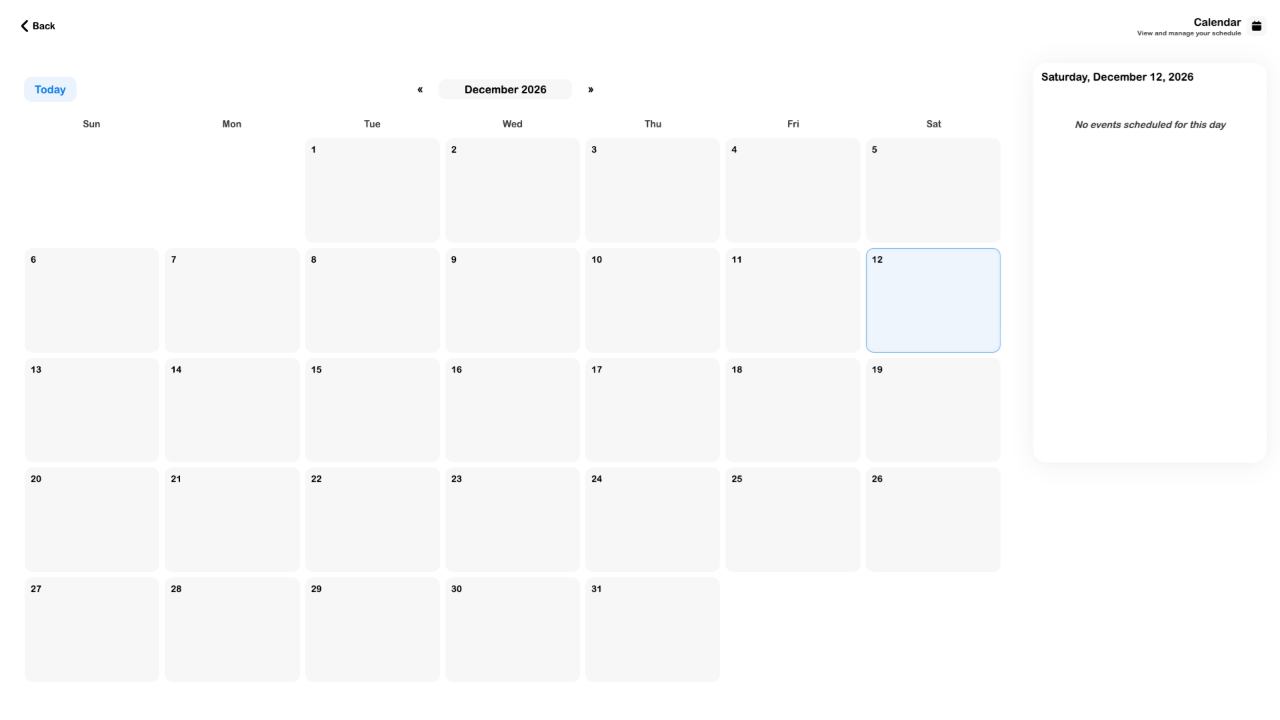
The SRVZ calendar provides a date-based view of your schedule. It complements Orders by helping you inspect what is associated with a chosen day.
A practical example
You want to check a booking date before making another request or find the day of an upcoming event.
Open the feature
Open this area in SRVZ. Screenshots use the actual local web app and a test account; your saved records and available offers may differ.
Step by step
- Open Account → Calendar.
- Use Today to return to the current month and date.
- Use the previous/next arrows to reach the month you want.
- Select a date and review the day’s entries.
- Open the related order or event where the calendar offers it to check the authoritative details.
Important options
| Option | What it means |
|---|---|
| Date navigation | Month arrows and Today control the period you are viewing. |
| Day view | The selected day can show scheduled entries or an empty-state message. |
Tips
Compare the calendar with the booking confirmation and provider’s accepted time. A requested time is not necessarily a confirmed appointment.
If something does not work
If the day is empty, check the selected date, account, and the record’s actual scheduling state. Use Orders to inspect the underlying booking.