Orders and tickets
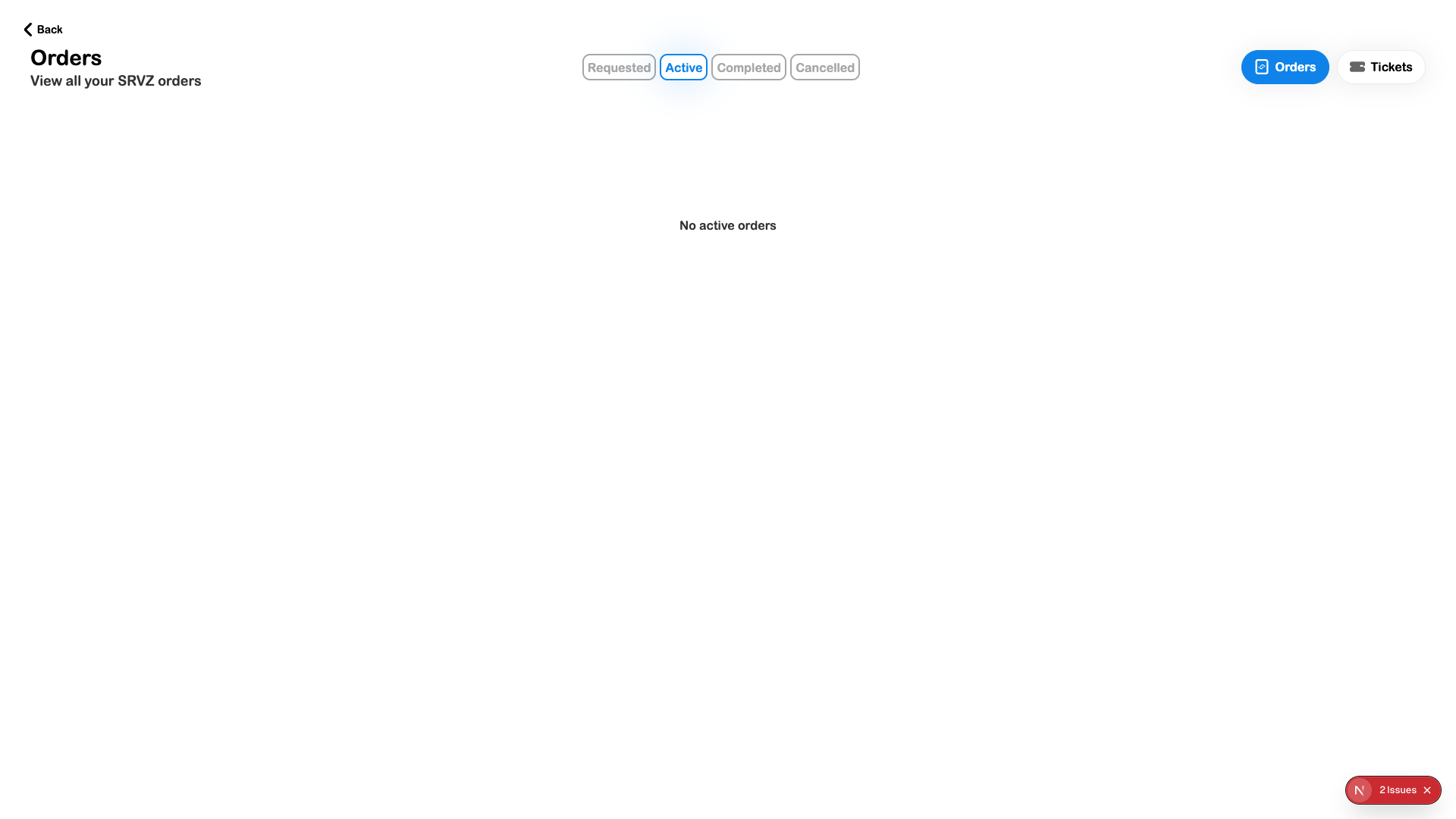
Orders is your account’s history and current-work area. Status views help distinguish requested, active, completed, and cancelled work, while Tickets provides the event-ticket view.
A practical example
You want to check whether a service request was accepted, find a rental booking, or retrieve the ticket you bought for an event.
Open the feature
Open this area in SRVZ. Screenshots use the actual local web app and a test account; your saved records and available offers may differ.
Step by step
- Sign in to the same account used when placing the request or purchase.
- Open Orders from Home or the app navigation.
- Choose Requested, Active, Completed, or Cancelled.
- Use Orders or Tickets according to the record you need.
- Open the record to inspect its current information and available actions.
- Follow the record’s provider/contact or support path when a detail needs clarification.
Important options
| Option | What it means |
|---|---|
| Status | Different offering types have their own operational steps; check the actual record rather than assuming one fixed sequence. |
| Tickets | Event-ticket access is separate from the ordinary order list. |
| Empty state | No active orders can mean the account has no records in the chosen view. |
Tips
Keep confirmation details until you can find the record in your account. Check payment state separately from the provider’s work status.
If something does not work
If an order is missing, check account/profile, status view, and Tickets. An incomplete checkout or access request may not have created a purchased order.
Related guides
Review a change from your provider
A provider can propose corrections to supported order details after you place a request. Open the order and look for the pending change or approval prompt.
- Read the explanation and each old and new value.
- Choose Approve changes when the revision matches your agreement, or Decline if it needs discussion. An Orders prompt may shorten the approval label to Approve.
- Wait for the result, reopen the order and check the saved details.
- Contact the provider if the change also affects price, payment or the appointment; approving an answer correction is not proof that those separate records were updated.
A provider can replace or withdraw a pending proposal, so review the current version before deciding. Some business flows allow direct edits and will show updated details without this approval step. This workflow is confirmed in the implementation; no live customer approval was performed for this guide.