Place a menu order
Select items, review fulfillment, and follow the confirmed order.
Before you start
Use the account you will use for the booking or saved record. Available options depend on the actual offering, provider setup, location, and device. The examples show the real app UI; no paid purchase or physical robot task was completed for this guide.
1. Choose the business
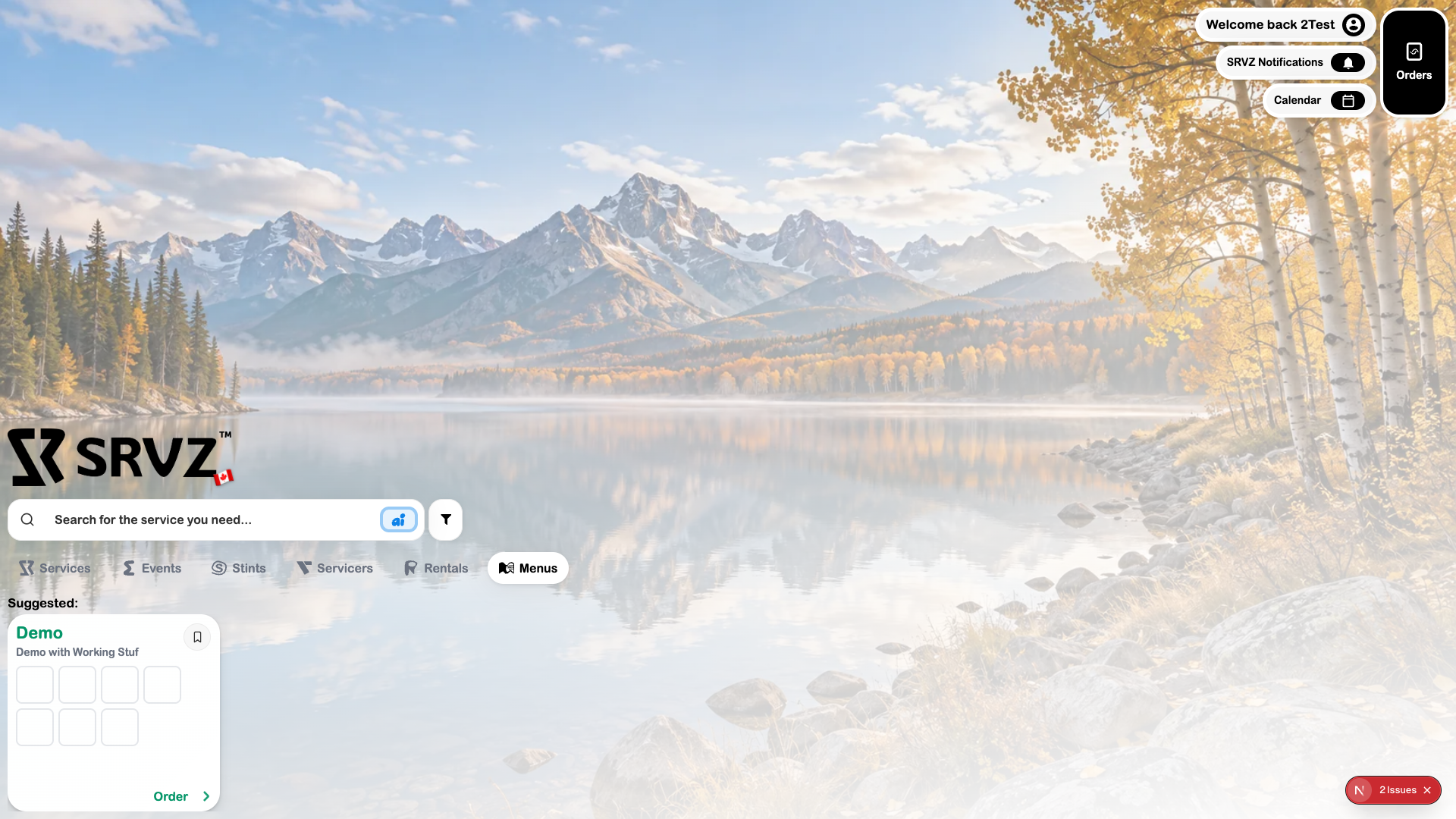
Open Home → Menus and select the menu you want. Check that online ordering is available.
2. Inspect and select items
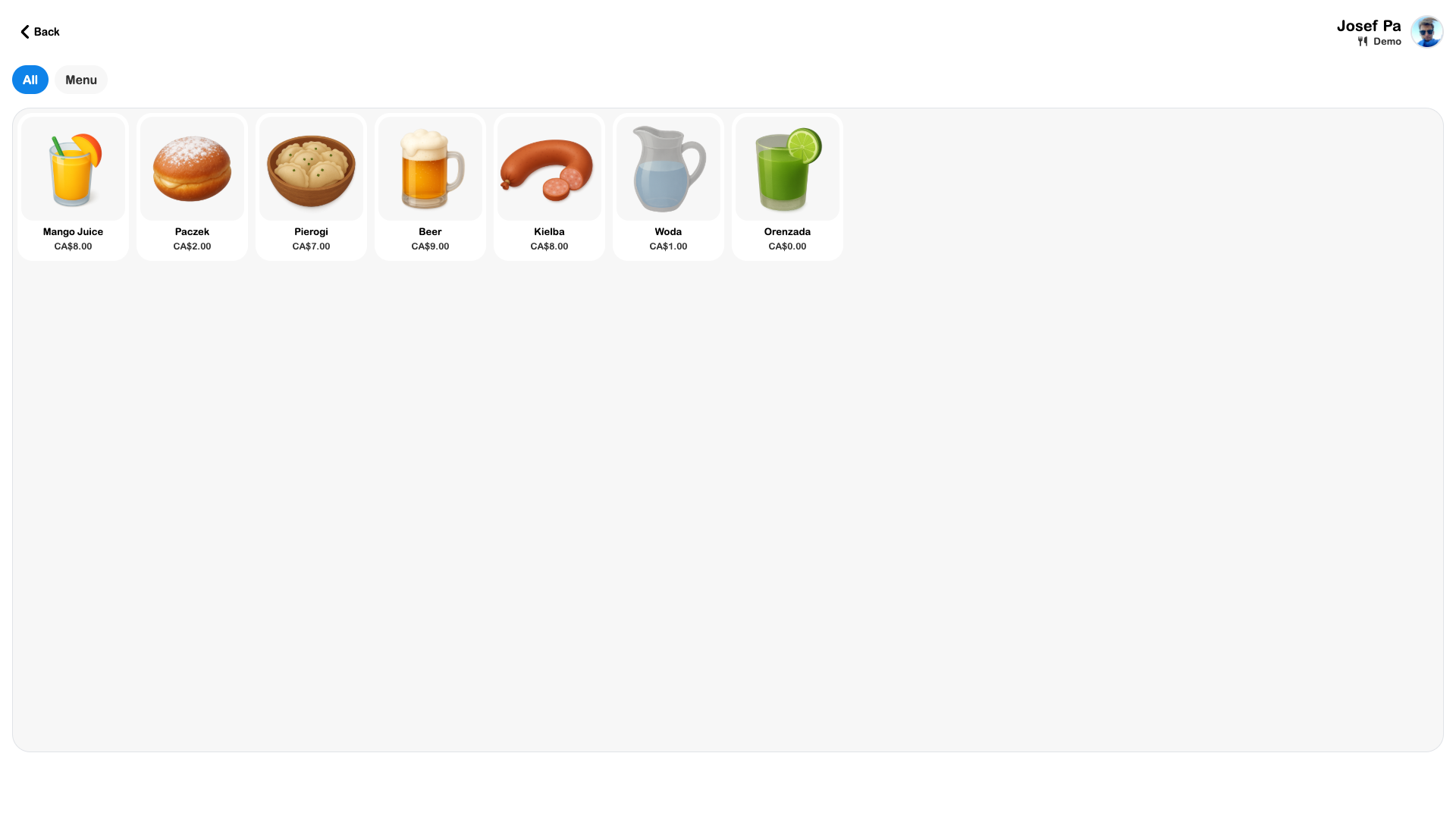
Read item details, choose the intended variant, and use any 3D preview to inspect the model when offered. Add the correct items to the cart.
3. Review the order
Open the order-review/checkout controls. Check quantities, variants, total, and pickup or table details. Confirm only when the complete summary is right.
4. Follow the result
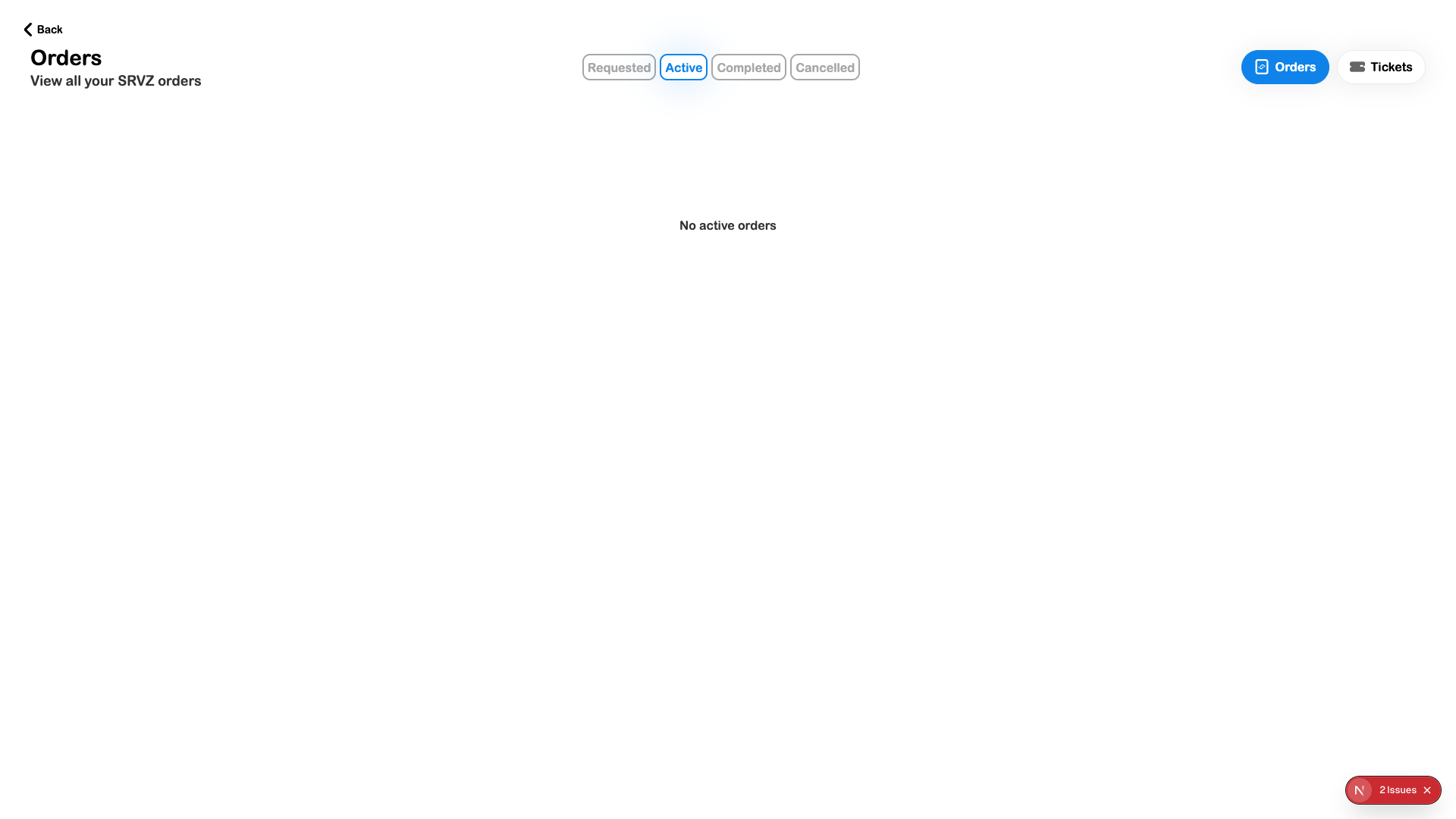
Check Orders for the created record and follow the business’s preparation, pickup, or handoff instructions.
Check the outcome
- Items, quantities, and variants are correct.
- The fulfillment location and total are right.
- The final confirmation and order record exist.