Explore Stint access
Understand a robot task’s scope and distinguish access requests from bookings.
Before you start
Use the account you will use for the booking or saved record. Available options depend on the actual offering, provider setup, location, and device. The examples show the real app UI; no paid purchase or physical robot task was completed for this guide.
1. Find the task
Open Home → Stints and choose the outcome you need, such as Tennis Ball Picker.
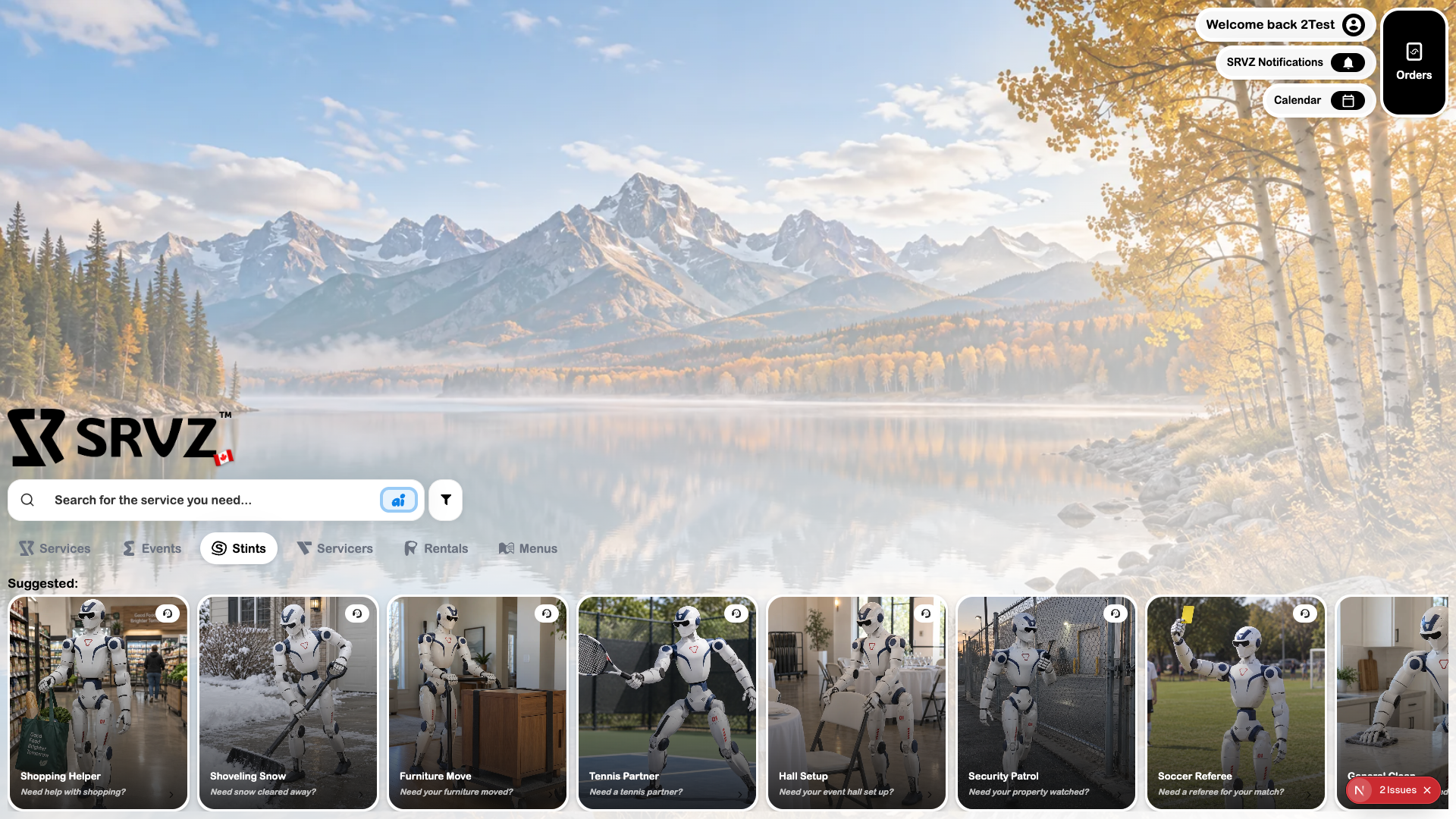
2. Read availability
Open the task and inspect its access/availability state. A catalog task does not prove a robot is available nearby.
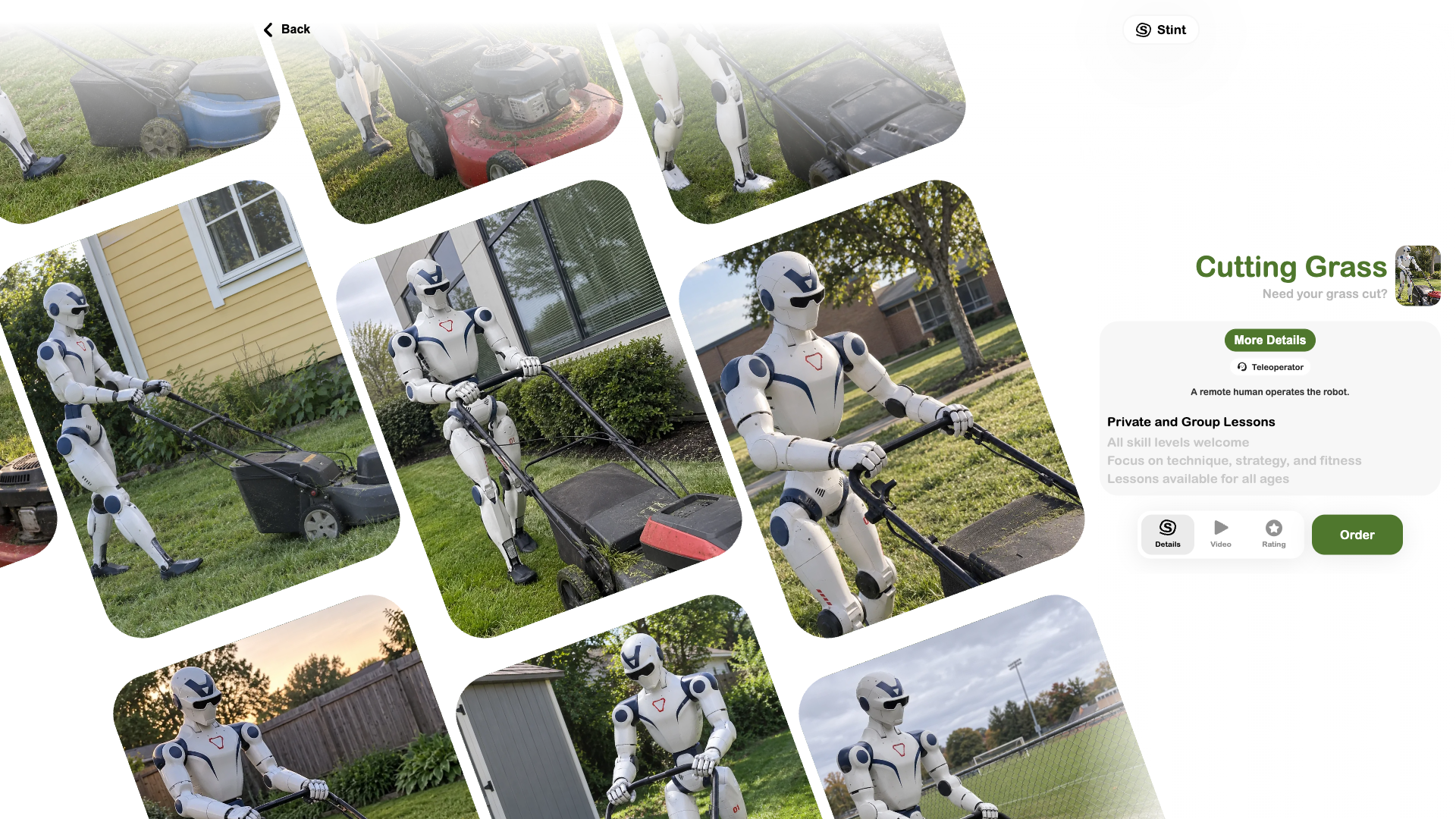
3. Use the offered action
If only Request Access is offered, complete that process and read its confirmation. If a booking flow is available, supply the required task, timing, and location information.
4. Check what was created
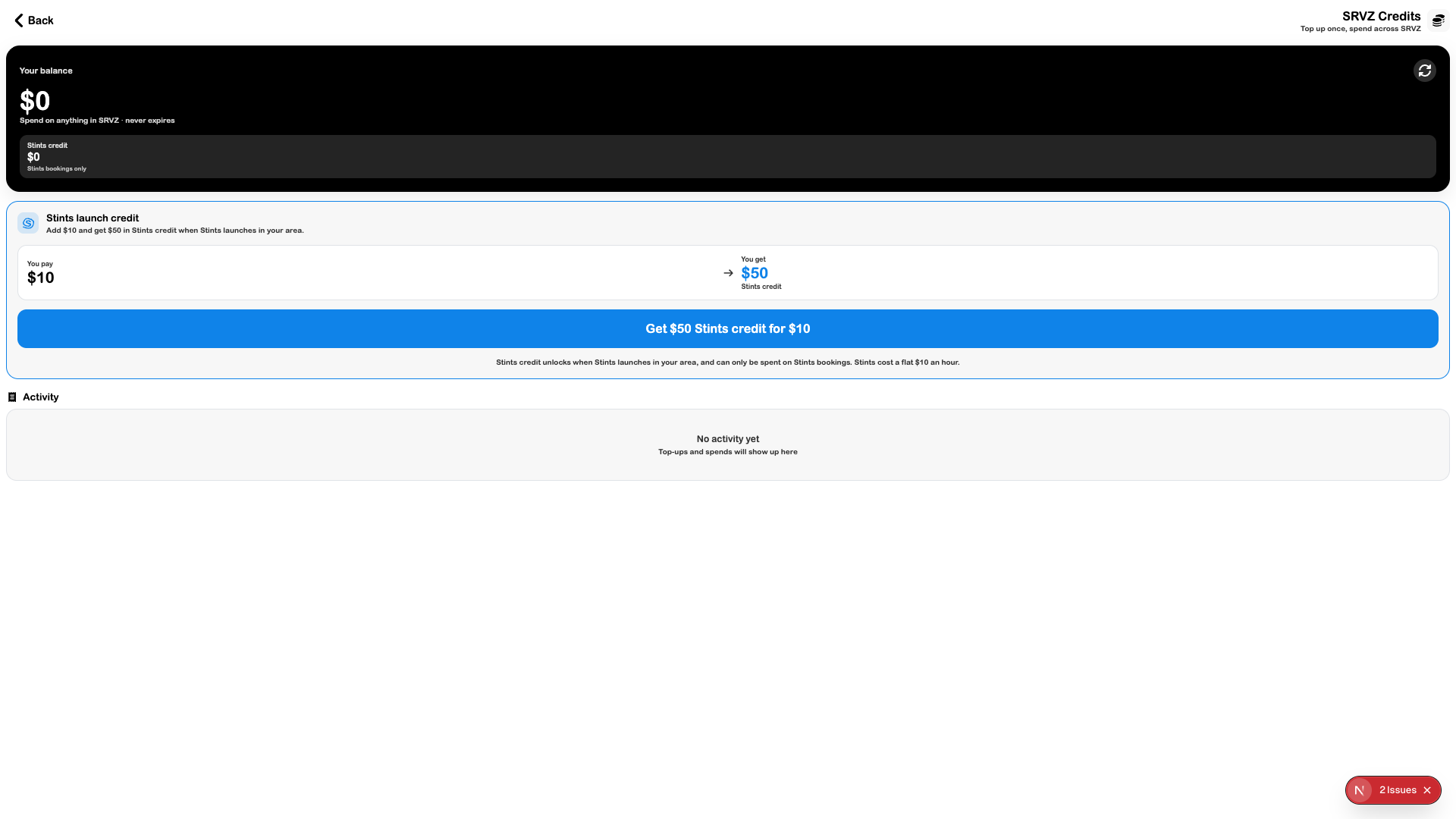
An access confirmation is not a paid task order. Check Orders only after a booking created an operational record, and read Stints-credit restrictions before any top-up.
Check the outcome
- The task and location requirements are understood.
- You can identify whether you requested access or placed an order.
- No assumption of local availability or autonomous fulfillment replaces the actual confirmation.