Buy and find an event ticket
Choose an event, complete its ticket workflow, and keep the ticket accessible.
Before you start
Use the account you will use for the booking or saved record. Available options depend on the actual offering, provider setup, location, and device. The examples show the real app UI; no paid purchase or physical robot task was completed for this guide.
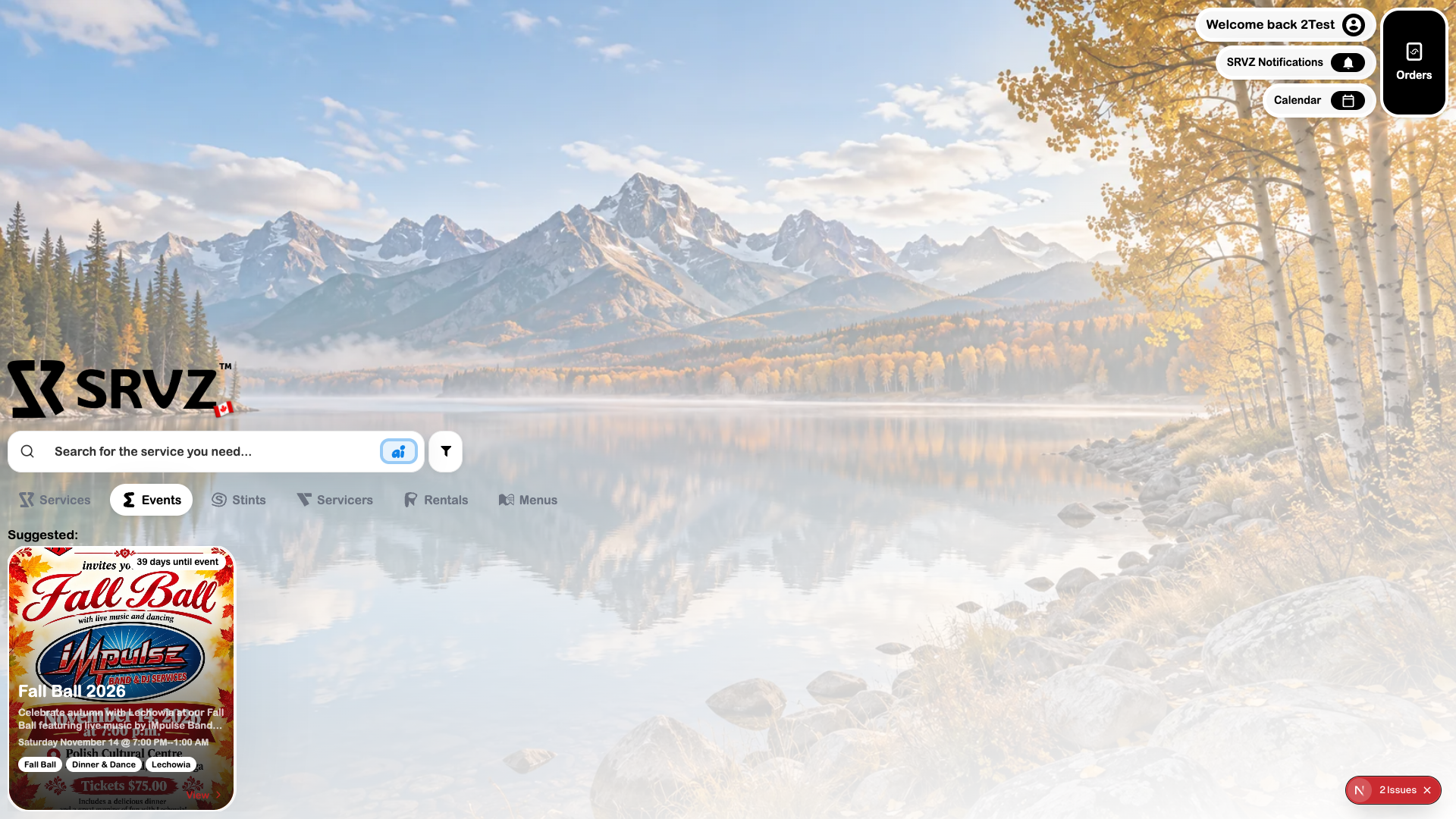
1. Read the event
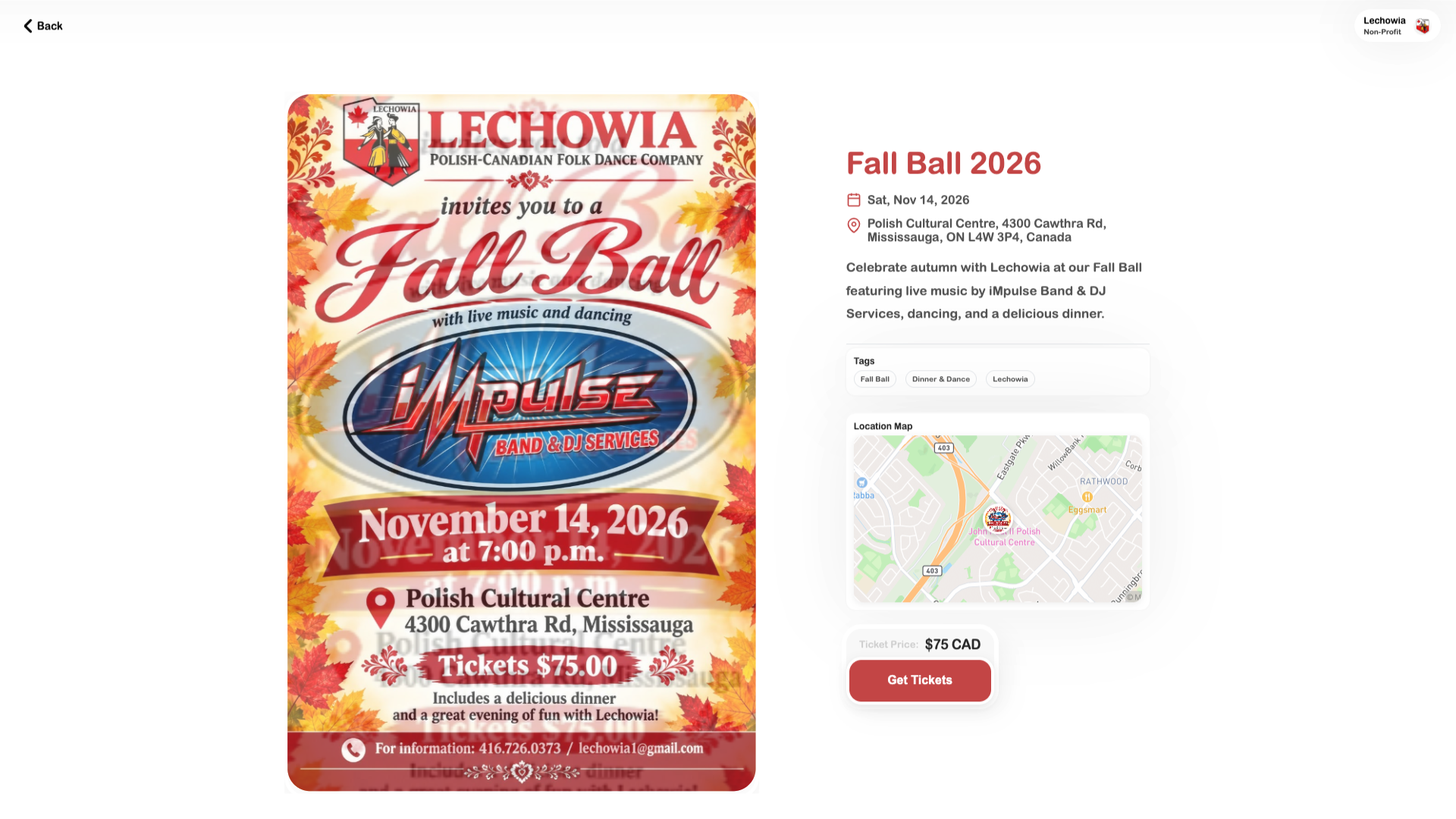
Open Home → Events and choose View. Confirm the date, time, location, and organizer.
2. Choose a ticket
Use the event’s seat/table picker or quantity/ticket-type controls, depending on its sale mode. Check what the chosen ticket includes.
3. Complete registration and checkout
Answer attendee questions when shown. Review the final amount and available payment method before confirming. Selected seating is not a purchased ticket until checkout completes.
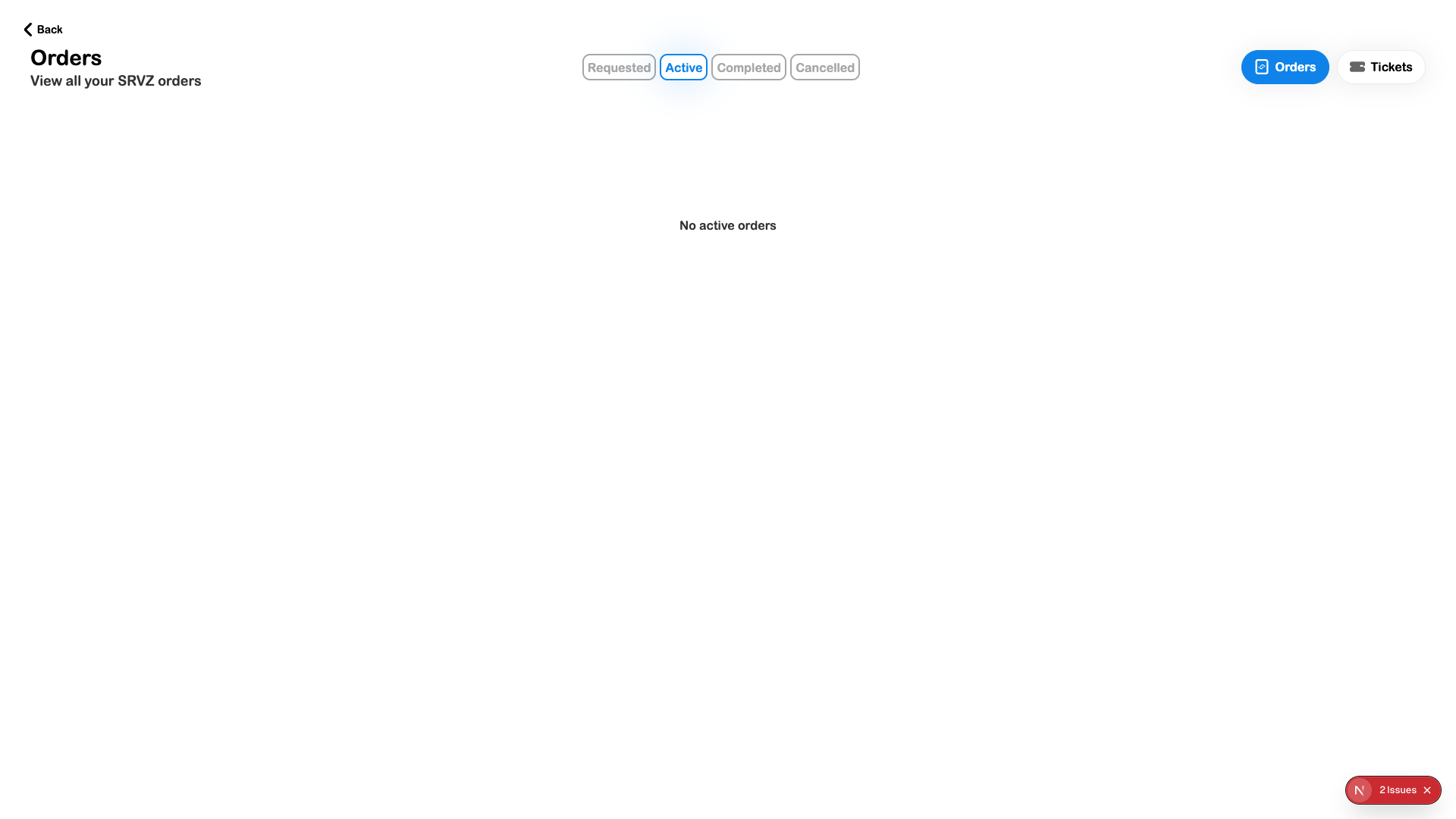
4. Find the ticket
Open Orders → Tickets using the same account. Inspect the ticket and follow the organizer’s check-in instructions.
Check the outcome
- The event date and venue are correct.
- The correct ticket/seat and attendee answers are selected.
- Checkout succeeded and the ticket is available under Tickets.