Use saved room context
Understand browser viewing and the native-device scan requirement.
Before you start
Use the account you will use for the booking or saved record. Available options depend on the actual offering, provider setup, location, and device. The examples show the real app UI; no paid purchase or physical robot task was completed for this guide.
1. Open Rooms
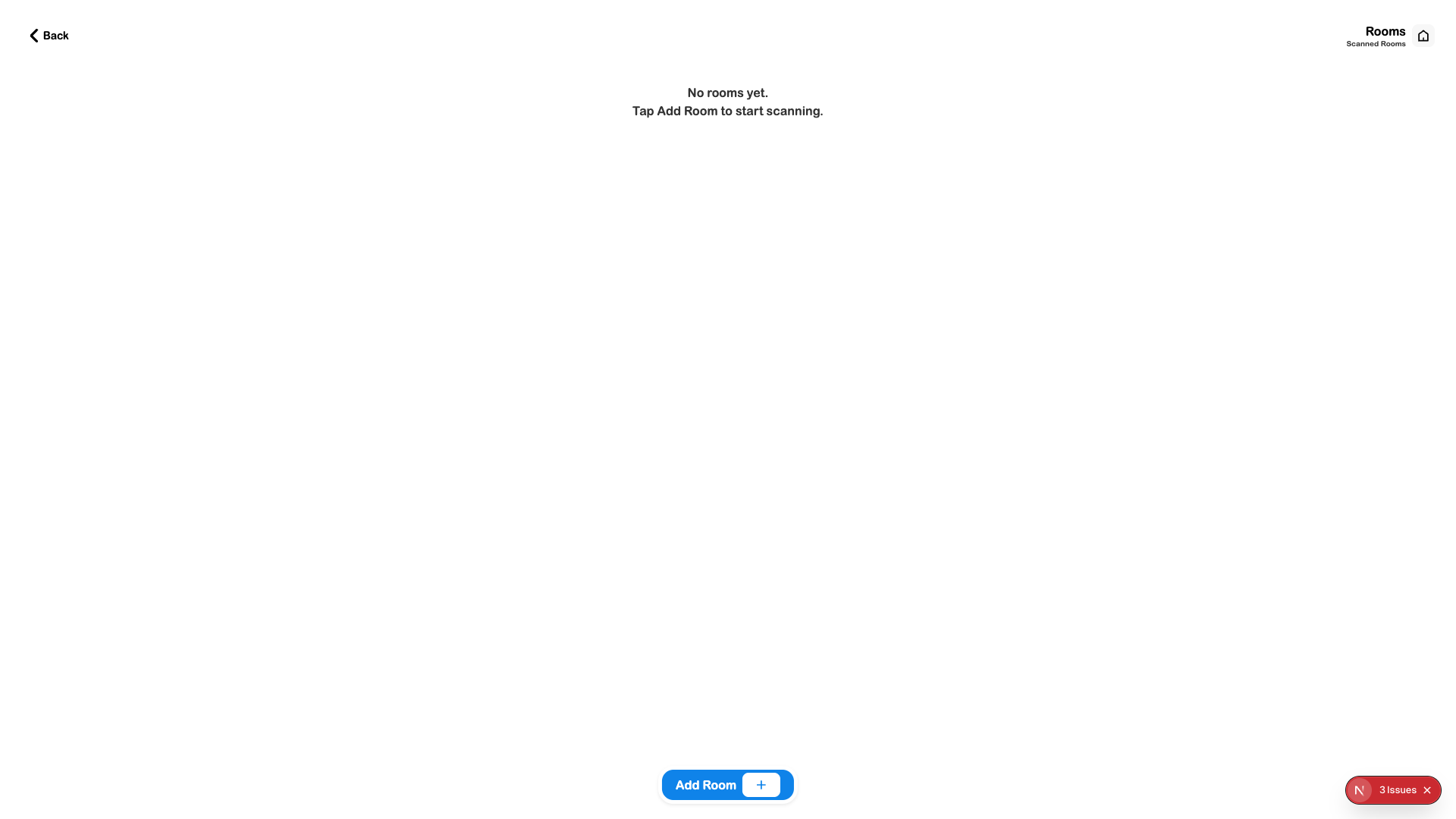
Open You → Your Rooms. Review existing models if the account has any.
2. Choose the supported capture path
Choose Add Room. In a browser, use the app-download prompt; scanning itself needs a compatible native iOS device with RoomPlan support.
3. Review the saved model
On a supported device, follow the scanner and upload steps. Reopen the resulting room record and check the model before relying on it. This browser audit did not perform a physical scan.
4. Use it as practical context
When a service flow offers room selection or asks for spatial information, select the intended model and supply any additional measurements requested. Do not assume every provider automatically receives it.
Check the outcome
- The native device supports the scan.
- The saved room belongs to the intended account.
- The provider workflow explicitly uses the context you intend to share.